 Professional Password Recovery/Rescuer Software, Data Recovery/Rescuer Software
Professional Password Recovery/Rescuer Software, Data Recovery/Rescuer Software
Professional Password Recovery/Rescuer Software, Data Recovery/Rescuer SoftwareMany people are accustomed to having MS Outlook remember their passwords itself,so they are free from always inputting the password every time. That is rather smart but meanwhile it makes you far more easily forget the password as time goes. So there is much need to prepare a password recovery tool for the unexpected troubles. The friend who can help you recover outlook password is as follows.
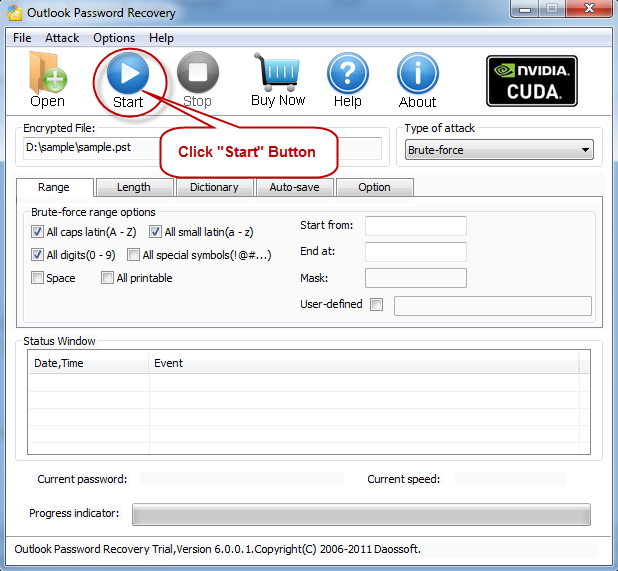
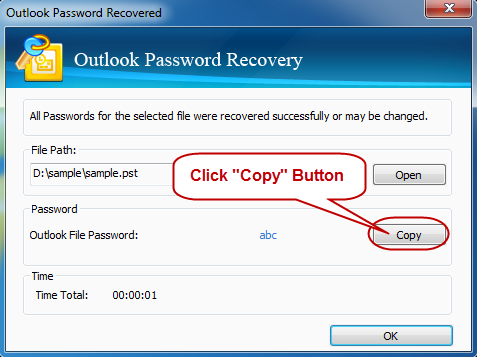
Daossoft Outlook Password Rescuer can help you quickly recover the outlook password within a few minutes. Now, let’s see how to recover the password step by step.
Download the trial version below and install it.

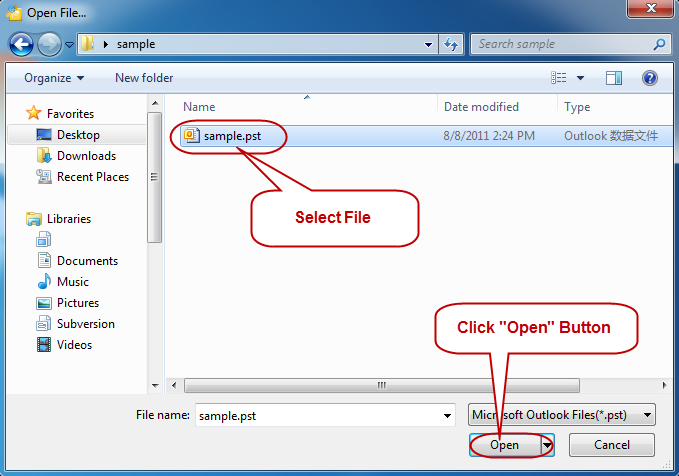
Press the "Open" button to select a password-lost MS Outlook file(*.pst).
Figure A:
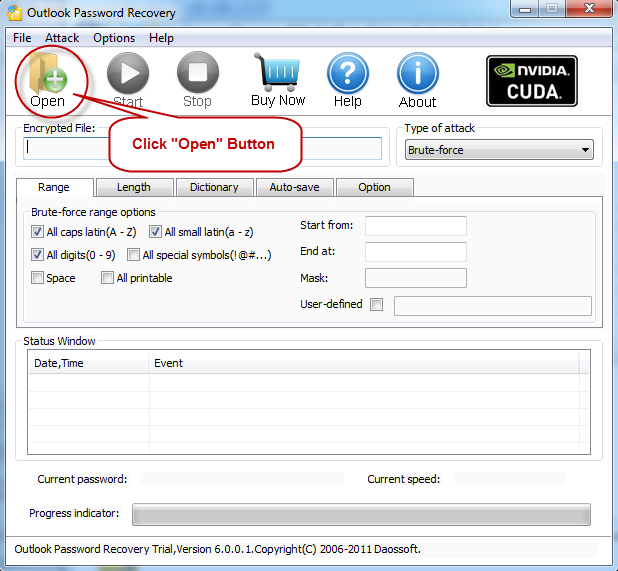
Figure B: