 Professional Password Recovery/Rescuer Software, Data Recovery/Rescuer Software
Professional Password Recovery/Rescuer Software, Data Recovery/Rescuer Software
Professional Password Recovery/Rescuer Software, Data Recovery/Rescuer SoftwareForgot your Excel password and cannot access it? Have you ever suffered the similar troubles caused by forgetting or losing your Excel password, Here is the full and detailed tutorial which teaches you how to recover excel password easily. Good luck to you!
Firstly: When you find your passwords lost or forgotten, there is no need to feel embarrassed with it since people all over the world forget some things now and then, even extremely significant things. It is quite natural for a human to do this, so take it easy and keep a good mood.
Secondly: You should try your hardest to recall it first of all. That seems helpless, but it works actually. What you need is just a silent corner and a external hint.
Thirdly: If the method above doesn’t work, it’s the right time to turn to a Password Recovery Tool for help. Believe it or not, you can recover your Excel document password as long as you closely follow the detailed instructions below.
Get a free trial version and have a go.

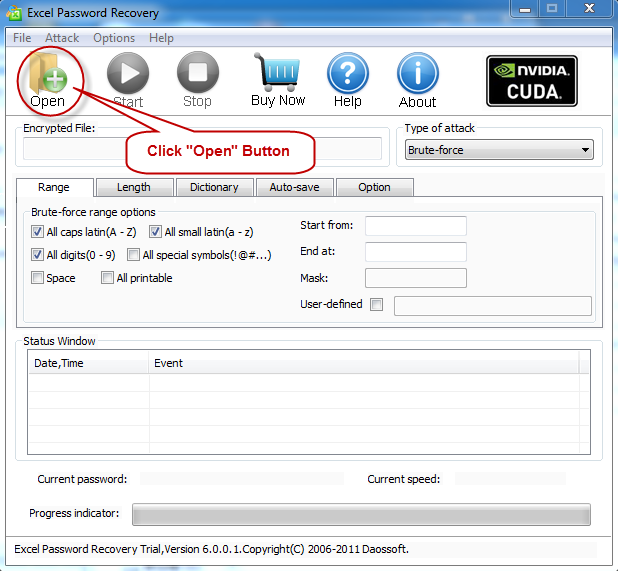
Press the "Open" button (or select the "File | Open File" menu item) and choose the file you'd like to recover the password.
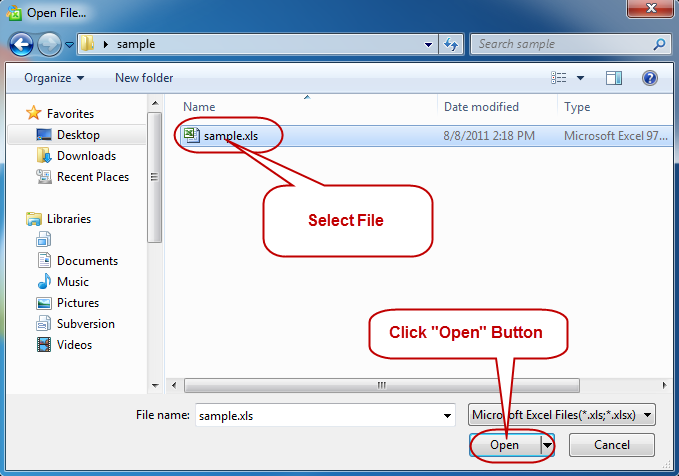
In the Open File Dialog, select the forgotten or lost Microsoft Excel file and click "Open". Instead, you can also double click the Excel file you want to recover to open it.
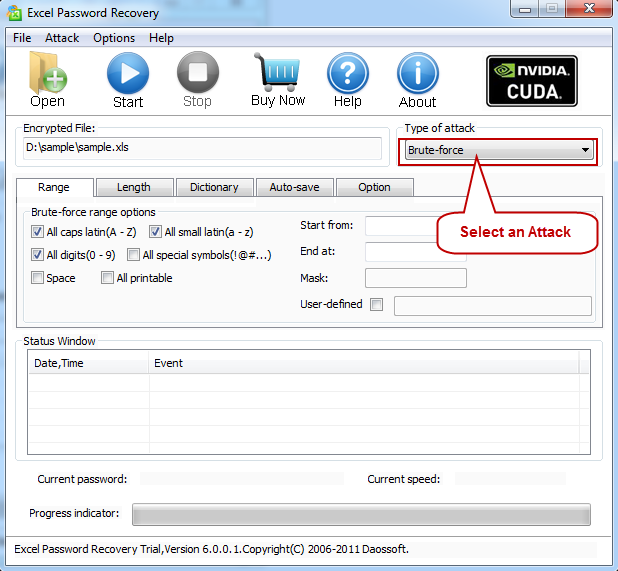
There are four attack modes in our program for you to recover your password. They are Brute-force Attack, Mask Attack, Dictionary Attack and Smart Attack.
What's different:
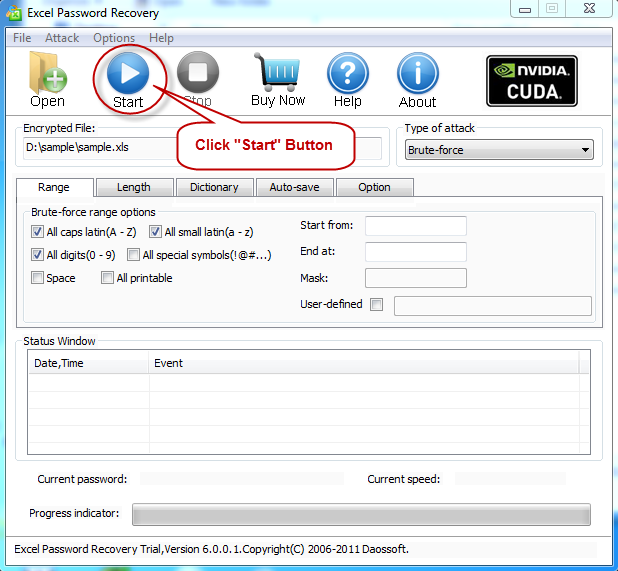
Brute-force Attack: This attack type allows you to open the "Range" tabbar and set the "Brute-force range option" as needed before you click the "Start" button to start the recovery.
Smart Attack: It allows you to start the recovery without any more manual settings.Just choose the "Smart Attack" on the tabbar and then click the "Start" button to begin the recovery.
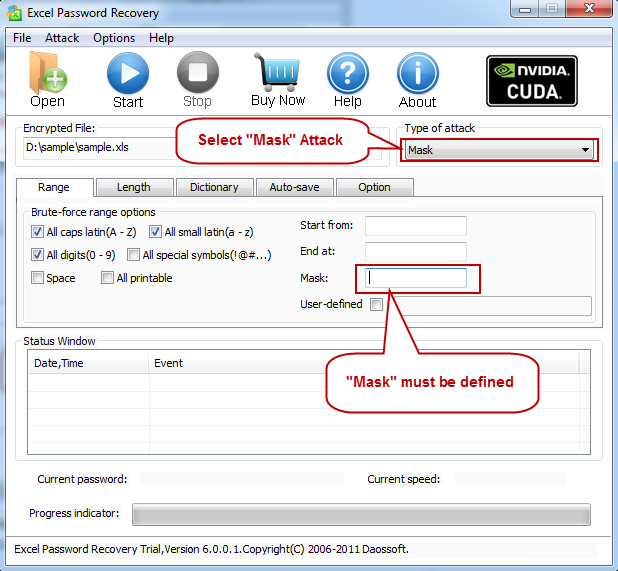
Mask Attack: It needs a mask to help you recover the password.A mask is some characters in your lost or forgotten password you still remember.The program will regard the given mask as one character to accelerate the process of decryption.
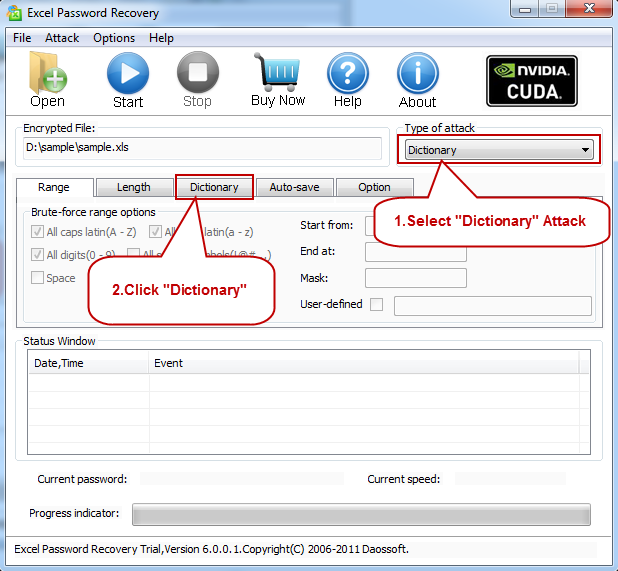
Dictionary Attack: Before you use the Dictionary Attack type, a dictionary should be made though a dictionary generator,which can guide you to make an effective dictionary step by step according to your request.
How to Choose:
If you remember some symbols of the password still, please choose Mask Attack. Otherwise, it’s quite smart for you to choose Smart Attack at first.
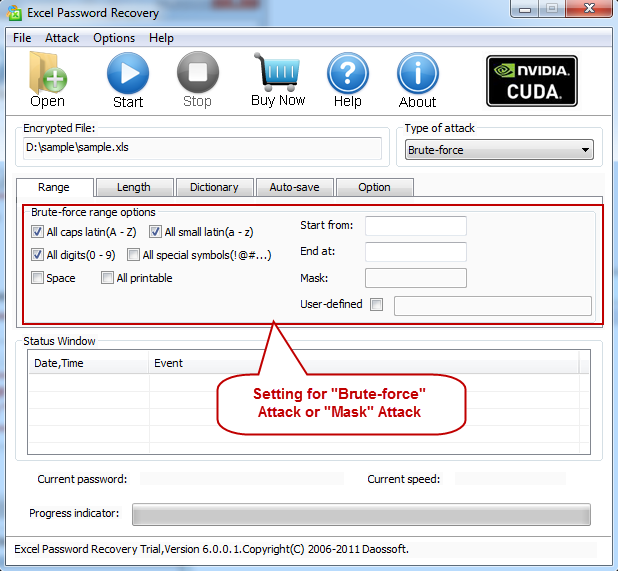
In these two attack types, including Brute-force Attack and Mask Attack, you are supposed to tick the "Brute-force range options" before you start the recovery, and the program will try all possible combinations in the specified range you set.
"Length" Settings: Set the password length range you are certain of.
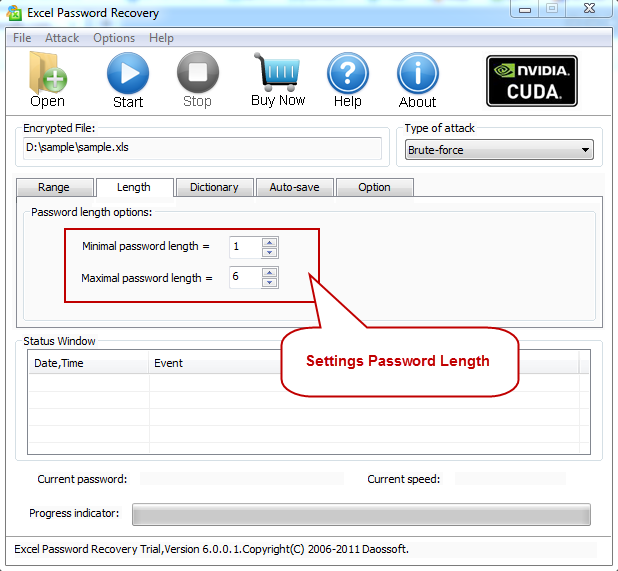
If you choose Mask Attack, some password symbols which you are sure of should be offered to define a password Mask, which can evidently accelerate the process of recovery.
For instance, if I had forgotten my Excel password and I only remembered that it consists of 8 characters, which starts with a letter "8" and ends with a "j", I can set the mask like this: 5??????j
choose "Dictionary" recovery mode on the tabbar and then finish the settings.
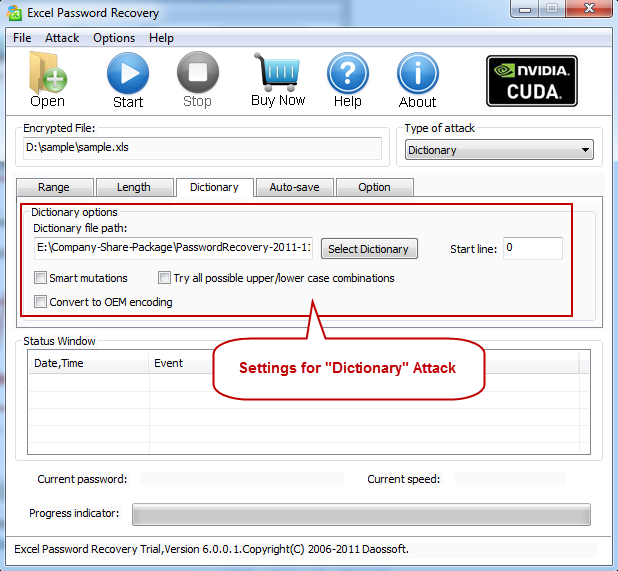
"Dictionary" Settings:
Firstly browse and select the dictionary file(*.dic or *.txt) prepared in advance, choose an option "Convert to OEM encoding", "Smart mutations" or "Try all possible upper/lower case combinations" as needed.
Just choose "Smart Attack" on the tabbar without any more munual settings before you jump to the forth step.
Click "Start" button(or select the "Attack | Start" menu item) to start the attack, soon you will get your lost excel password.
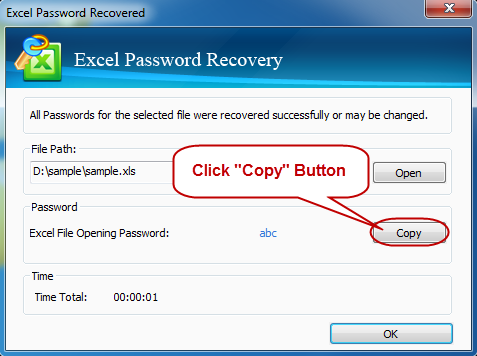
Once the password recovery is completed, the program will bring you the password via a pop-up dialog box. Click "Copy" button and then "Open" button. In the pop-up Password window, you can paste the recovered password in the textbox.
Note: If something happened and you had to shut down the computer for the time being or you meet a unexpected electricity cut-off when the program was recovering the password, you could set your heart at rest for the program would auto-save the recover process and you could go on recovering the password when rerunning the program next time.

