 Professional Password Recovery/Rescuer Software, Data Recovery/Rescuer Software
Professional Password Recovery/Rescuer Software, Data Recovery/Rescuer Software
Professional Password Recovery/Rescuer Software, Data Recovery/Rescuer SoftwareGot your Word password lost or forgotten? Take it easy. There is no need to feel embarrassed since everyone forgets some things from time to time, even extremely important things. Just try your hardest to recall the password. If that doesn’t work, the following two methods are available to help you to recover Word password yourself. Good luck to you!
Just give either a try:
Part 1: Recover Your Word File password with Word Password Tool
Part 2: Recover Your Word password with Password Rescuer
Daossoft Word Password Rescuer is a good helper designed to save people from suffering the troubles caused by losing or forgetting their Word passwords.
Get a free trial version and give it a try.

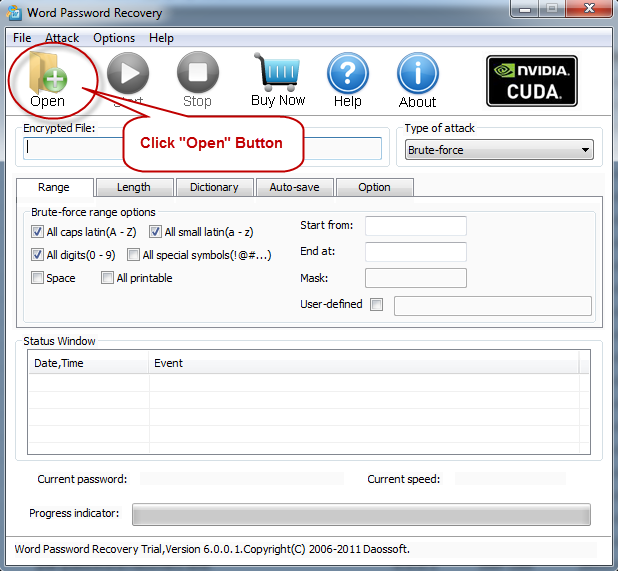
Launch Word Password Tool, click the Open button in the top left field of the following main operating interface, and then browse for the Word file you want to restore.
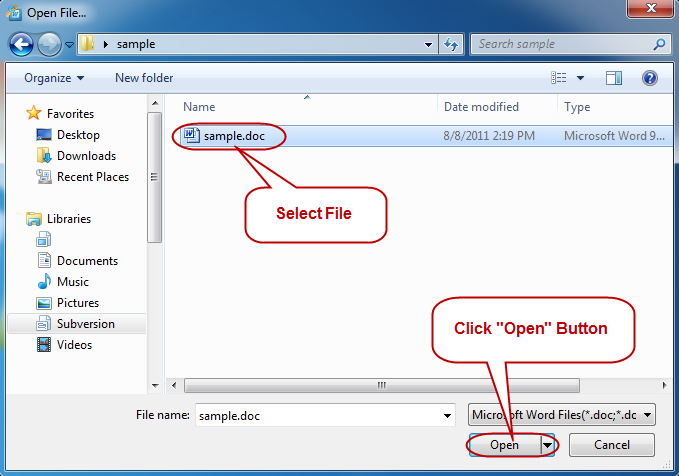
Next, choose the password-lost Word file and click "Open" button in the Open File dialog. Besides, you can also double click the file you would like to work on instead of the way mentioned just now. Which one is up to you. All roads lead to Rome!
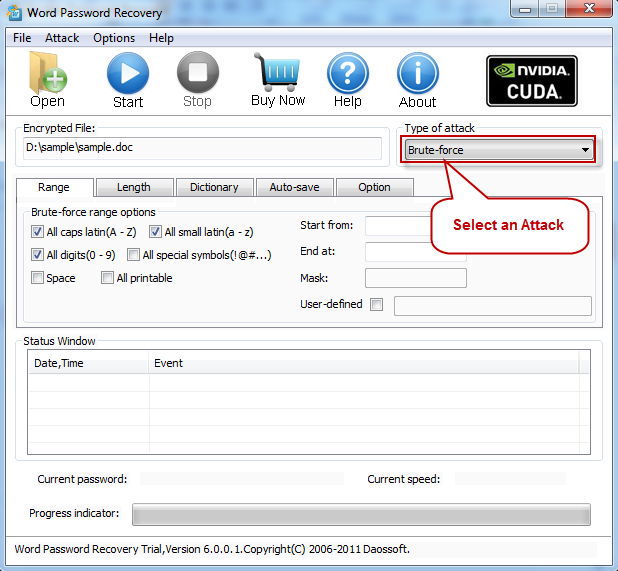
Four attack modes are provided to aid you to recover your password, including Brute-force , Mask , Dictionary and Smart .
What are the differences:
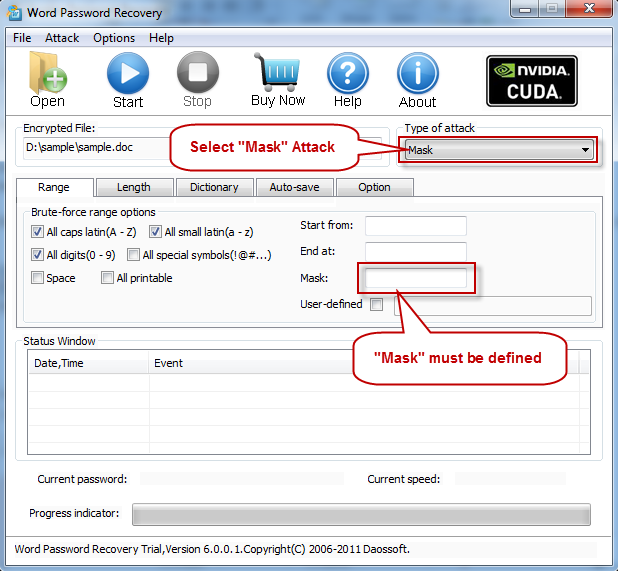
Mask : A mask is some characters in your previous password you remember still, which can significantly help you fast recover the password. When given a password mask, the program will take less time to finish recovering your password.
Smart : In this mode, you are allowed to start the recovery without any more manual settings.Just choose the "Smart" mode in the Type of attack field and then click the "Start" button to begin the recovery.
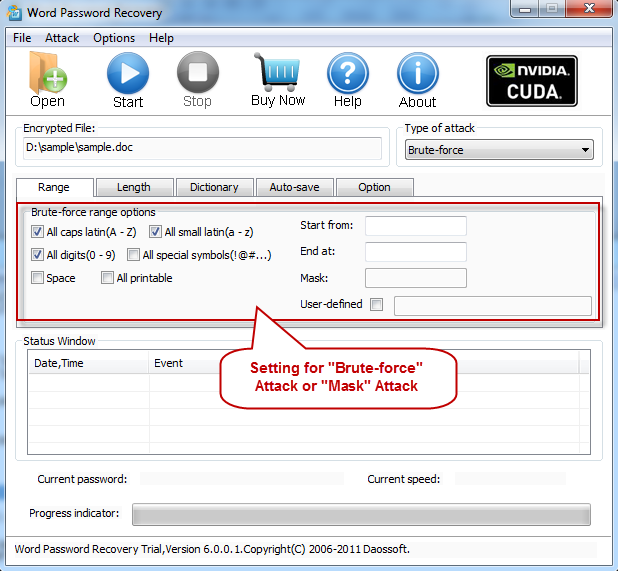
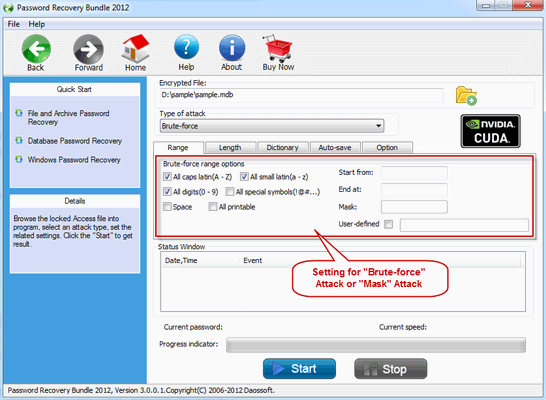
Brute-force : In this attack mode, you need open the "Range" tabbar and set the "Brute-force range option" as required before you start the recovery.
Dictionary : If you use the Dictionary Attack type, a dictionary should be used to crack the password.
How to make the right choice:
If you remembered some characters of the password still, please choose Mask mode.
For instance, if you still remembered your 9-character password started with a "@" and ended up with a lowercase "t", you are supposed to enter like this: @????????t
Or, it’s quite smart of you to give Smart mode a try at first.
Choose Brute-force or Mask mode: The program will try all possible combinations in the specified Range you set.
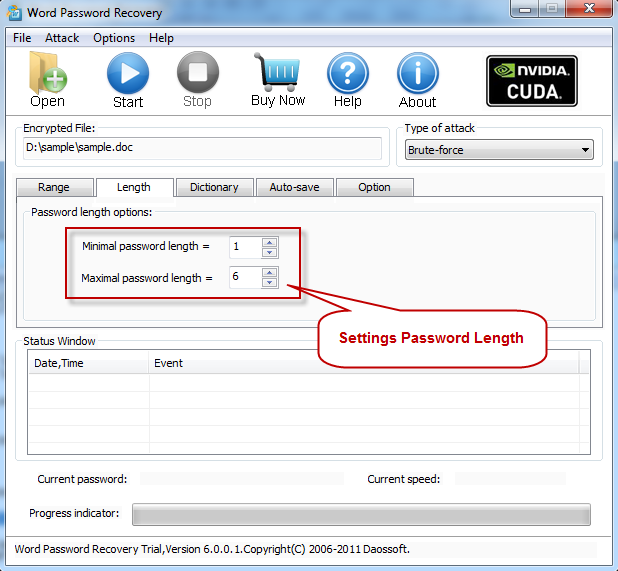
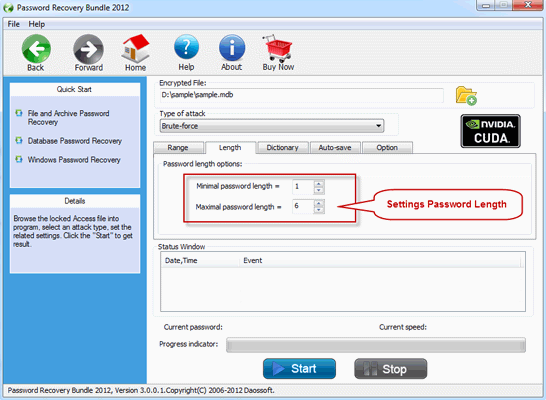
Password length Settings( only for Brute-force mode):
If you'd like to choose Brute-force mode, you are asked to set the password length as you can see in the following picture.
Note:Though you have almost forgotten the password, but the password length range may be certain of. Just set it.
Choose Mask: Some password symbols which you are still clear in your mind should be offered to make a mask, a password mask, to preceed to recover your password.
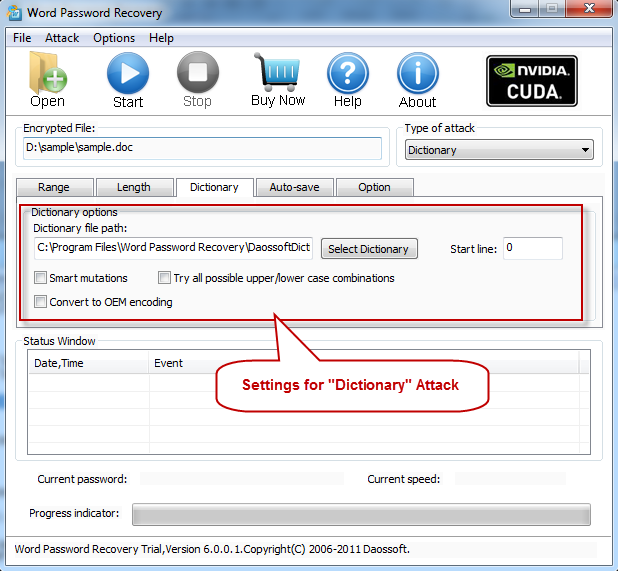
Choose Dictionary mode: As you can see in the following picture, you should click and select the "Dictionary" option on the tabbar.
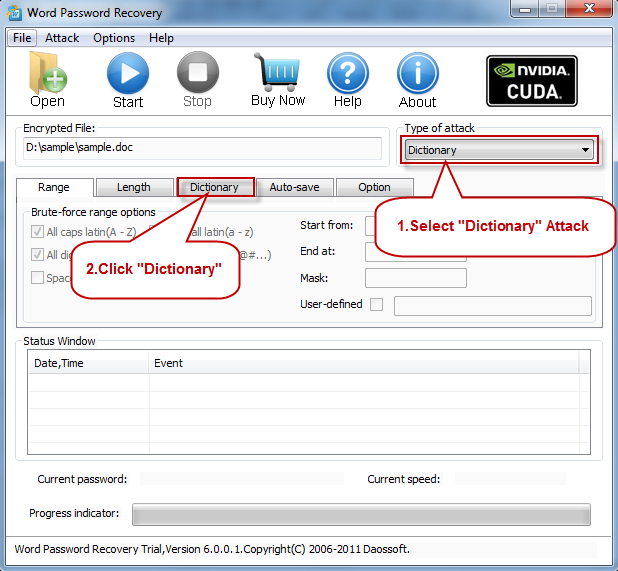
Next,set the dictionary mode. Simply select the desired dictionary file. In addition, you can select an option "Smart mutations" or "Try all possible upper/lower case combinations."
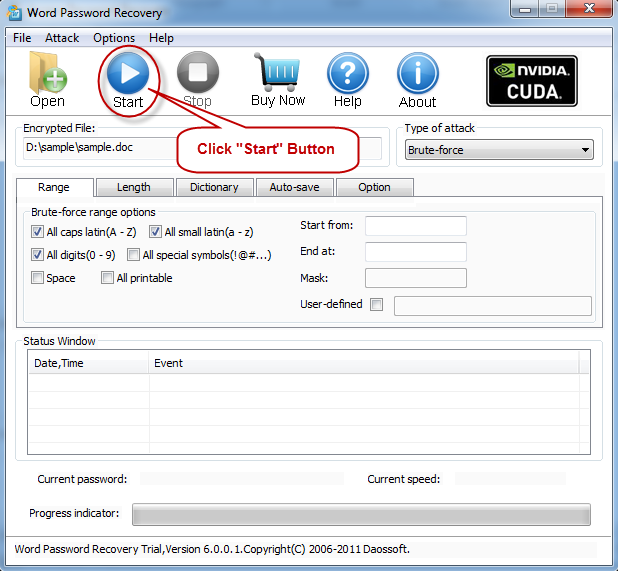
Start the attack by click "Start" button(or click like this: "Attack | Start" ), you will get your lost Word password soon.
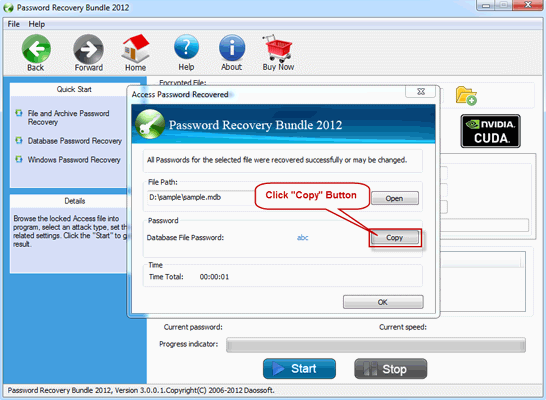
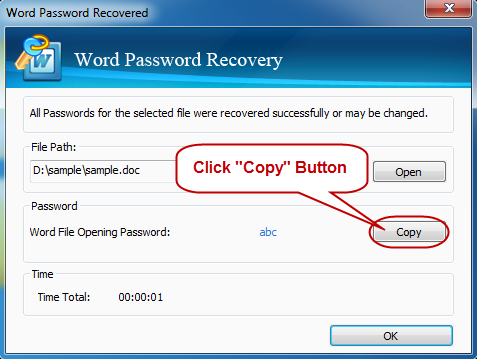
Once the password recovery process is completed ,the program will bring you the password via a pop-up dialog box. Press "Copy" button to get it. For convenience, you can also Click the Open button to open your troubling file, and then paste your password to the password textbox.
Password Rescuer is an easy-to-use program, which can get back your forgotten or lost password effectively and steadily as long as you follow the using guide below.
Step1. Firstly, you should have your password-lost Word file opened by clicking the Open button.
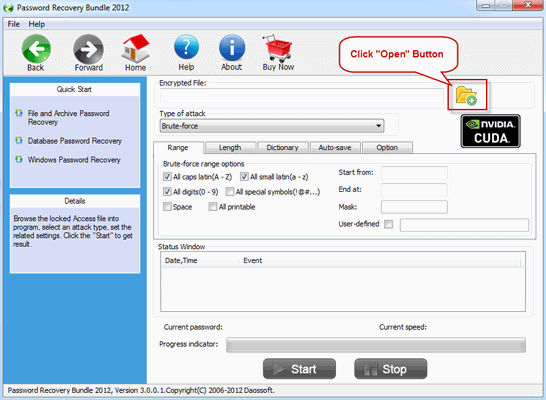
In the folders and files field of the pop-up Open File window, you can double click the Word file you want to restore; Or, you can also select the file and press the Open button.
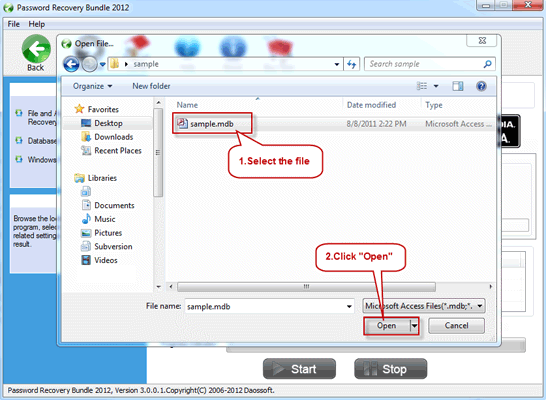
Step2. As you can see in the following picture, you need choose an attack mode to hack your file password.
Which one is up to you, but I strongly recommend you to use MASK mode if you still remember part of your Word file password.
For instance, if you remembered your 10-character password started with a "5" and ended up with a lowercase "s", you are supposed to enter like this: 5????????s
Otherwise, I suggest that you use Smart mode.
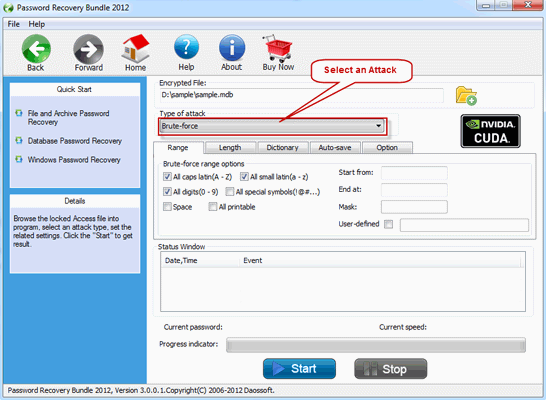
Step 3. If you use Brute-force or Mask mode, you should set the lost password’s properties, like length, character type used, and so forth, which can been seen in the following two figures.
Password length range should be offered.
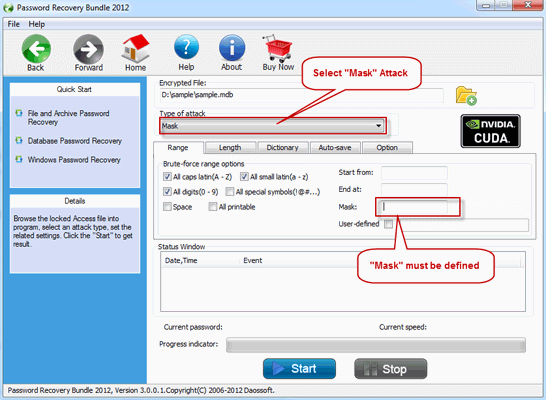
Option 2: As mentioned above, it’s suggested that you use Mask mode to crack your password when you still remember some characters of your Word opening password.
Option 3: Dictionary mode allows you to recover your forgotten password with the help of a dictionary, whether the default one or one made yourself. Just click like this:
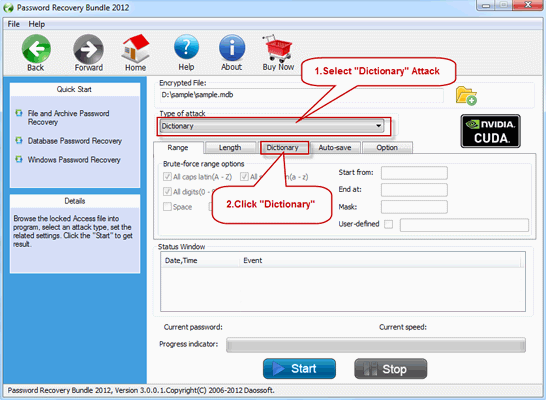
Settings for Dictionary mode:
You need use a dictionary, whether the provided one or one made by yourself. It's up to you.
Note: A dictionary can be created by a dictionary generator, which can be downloaded from the network.

Step 4. Start the Word file password recovery by clicking the Start button.
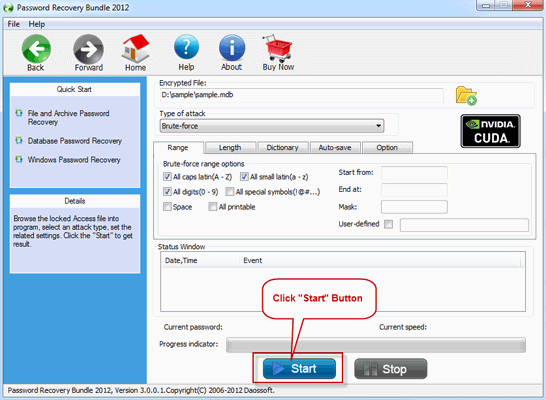
Step 5. When the Word opening password is cracked, you will get it by a pop-up window. Just click Copy button and then Open button. Once the Word file is opened, you can paste your recovered password in the password textbox.