 Professional Password Recovery/Rescuer Software, Data Recovery/Rescuer Software
Professional Password Recovery/Rescuer Software, Data Recovery/Rescuer Software
Professional Password Recovery/Rescuer Software, Data Recovery/Rescuer SoftwareYes, it seems that there might be no need to search for how to recover or reset Window password any longer because you can reset your forgotten password easily as long as you follow the tutorial below. Don’t believe in me? OK, read on and prove that I am lying.
★ Way 2: Reset the Password Using Handmade Windows PE USB or CD/DVD (Not for XP)
★ Way 3: Recover Your Windows Login Password by Extracting and Cracking SAM
★ Way 4: Reset Login Password With Linux Mint Installation Disc
★ Way 5: Resetting Your System Password Using the OSK.EXE Trick
This is how this method works. As you may or may not know, a bootable CD, DVD or USB drive can access the locked Windows. So, if you have a bootable CD/USB drive, some password tools can be burnt to it so that you can boot your computer from USB to perform Windows login password recovery.
Here're the details: (For all versions of Windows)
Step 1: Download Windows Password Rescuer/Password Rescuer and install it on another computer that you can access.

Step 2: Insert a blank CD/USB drive and run the software to burn the program to it.
Step 3: Enter the BIOS and set your locked computer to boot form a CD or USB drive.
If you have trouble doing that, you can see:
Step 4: You can reset the Windows logon password on a friendly operating interface after Windows Password Rescuer starts.
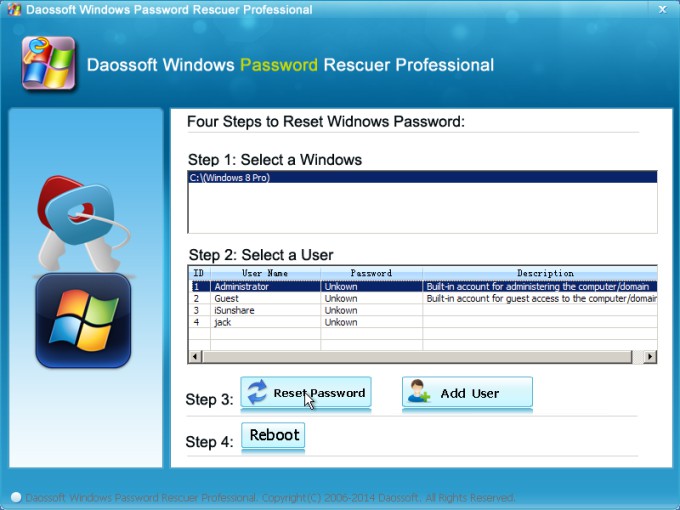
Tips: You also can use Windows Password Rescuer to create a new user with administrator privilege to your Windows without login. With the help of the new user account you can log back in to your locked computer directly.
As you may know, Windows PE can access the Windows even when it is password protected. So if you have a Windows PE USB CD/DVD, it is not a long way from resetting your password. So let’s start from here.
Reset the Forgotten Windows Password: (8 steps)
Note: This disk supports Windows 8.1, 8, 7, Vista. But we found it doesn’t pass the test in Windows XP.
Step 1: Power on or RESET (press RESET button in the computer case) the troubling PC.
Step 2: Enter into the BIOS and change the boot order so that the computer can start from the Windows PE USB or CD/DVD
(The system is loading the required files. Please wait…)
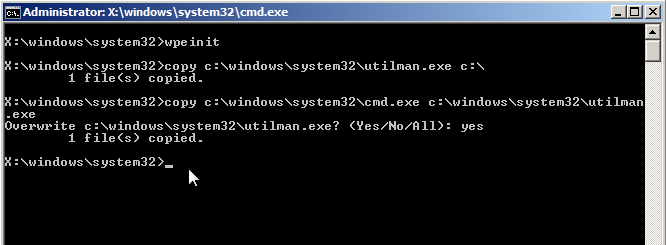
Once you get into the Windows PE, you will see the Command Prompt window that automatically appears.
Step 3: OK, Type in and execute the command chars:
copy c:\windows\system32\utilman.exe c:\ <Enter>
copy c:\windows\system32\cmd.exe c:\windows\system32\utilman.exe <Enter>
Note: "c:\" stands for the partition where your Windows was installed before. You can adjust it based on your actually situation.
Step 4: Next close the command line window and restart the computer.
Step 5: Remove the Windows PE USB or CD/DVD so that the system will automatically mount the local disk drive.
(Get back to the login interface!)
Step 6: Click the Ease of Access button on the bottom left.
Step 7: Select and run the Narrator application.
To your surprise, the Command Prompt comes out instead. It seems to be magic. In fact, it‘s only a trick to Windows.
Step 8: At this point, you should enter and execute:
compmgmt.msc
Note: There are three commands in all that you can utilize.
2. lusrmgr.msc [Enter]
3. net user <username> <newpassword> [Enter]
Example: "net user nancy doremi9474" or net user "jack sparrow" 2muchrum
Well, once you OK those above, you should restart your computer and return to the Windows with the reset login password. Good job, you have got around the lost password resoundingly! Congratulations to u!
In this way, you should make use of a Window PE USB drive to copy the SAM and SYSTEM file to the USB drive first so that you are able to decrypt them and finally recover your logon password.
What is SAM file?
The SAM file stores all the passwords on a Windows computer. It’s located in the folder: "C:\WINDOWS\System32\Config" If you extract it from the locked Windows and crack it with a SAM cracker, obviously, you can recover your old login password with ease. Besides, no password will be removed so that you are able to keep using the original password. However, if the password is longer than 6 chars, it might take days or even months to get it recovered. So it is up to you! If you want to get rid of it directly, you are advised to see Way 1.
How’s How:
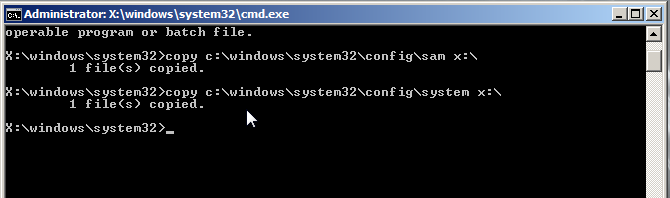
Step 1: Type in and execute:
copy c:\windows\system32\config\sam x:\
copy c:\windows\system32\config\system x:\
To recover the unknown (you forgot it) password, you need to decrypt the SAM file.
Here're the details:
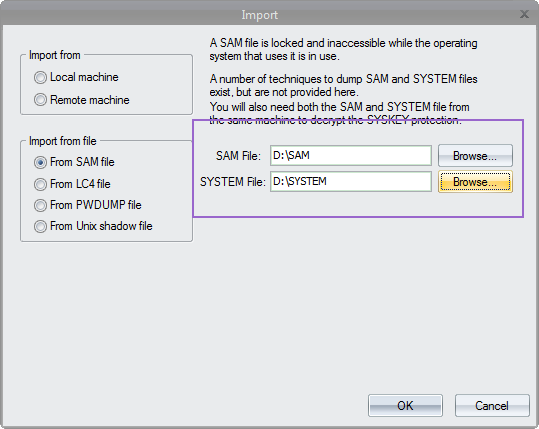
Step 1: Now download L0phtCrack and install it.
Step 2: Run the software tool and click Import Hashes.
Step 3: On the Import dialog box, in both SAM file and System File field, choose the files you copied to the Windows PE USB flash drive.
Step 4: Click OK and read the login password from the Password field.
You are recommended to use this tool only when your forgotten password is less than 6 chars because passwords longer than 6 chars will take days or even months to decrypt the password.
Yes, you can reset your Windows login password with ease if you have a Linux Mint Installation CD. Just find it and insert it into the CD/DVD RW and then follow the steps below:
From the picture below, you can see that the bootable disc is loading the system files automatically.

Step 1: Click the Menu in the bottom left corner, click Preferences and finally Disks.
Step 2: Choose the Windows disk drive or partition that you would like to perform password reset on.
Step 3: Mount and open the disk drive. Next, search for the utilman.exe executive file and rename it to "utilman1.exe"
Step 4: Search for the cmd.exe executive file and rename it to "utilman.exe"
Note: Next time you log back on to the Windows, you should remember to restore the changes.
Step 5: Shut down your Linux Mint and reboot your computer from the Windows disk drive.
Step 6: On the login screen, click the Ease of Access Center icon and the select the Narrator item.
Step 7: Type in " lusrmgr.msc" and execute it by the [Enter] key
Step 8: You only need to double click the Users folder.
Step 9: Right click the user whose password you would like to reset and select the Set Password option
This method shows you how to reset a Windows user account password without any program, just with your hands. In fact, there are a number of programs available on the Internet, but for a geek or a computer fan, it’s more interesting and challenging to change a Windows password by himself other than do that with a program.
If you'd just like to use a windows password reset program, how about Daossoft Windows Password Rescuer?
But how to do that? Here, we are going to use a trick to have the aim come true. The trick is to reset a Windows account password by replacing OSK.EXE with cmd.exe. Please follow the detailed instruction below.
What is "OSK.EXE"
"OSK.EXE", which is short for "Start On-Screen Keyboard.exe", is one of the common utilities in the Ease of Access Center, which is introduced to make a computer easier to use.
Some info on them:
OSK.EXE and cmd.exe have the same location: "C:\Windows\System32"


How it works
As long as you can access the Ease of Access Center on the login screen, you are able to run the OSK.EXE; but if the OSK.EXE was replaced with Command Prompt, or rather, the cmd.exe file, what would happen?-Yes, you are capable of changing some things, such as resetting the lost or forgotten password for the current user account, adding a new user account without logon to Windows, deleting a user account without logon to Windows, etc. As you see, this method is actually a simple trick but it works well on most Windows PC, whether an out-of-date Windows 2003 one or a latest Window 8.1 one.
How to reset Windows with the trick step by step:
 on the login screen, and choose the On-Screen Keyboard item.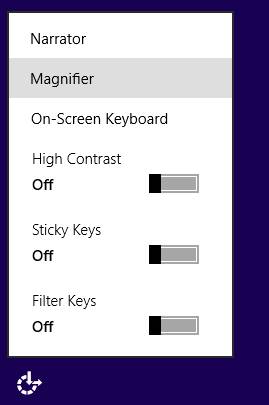
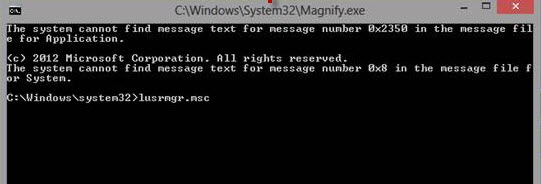
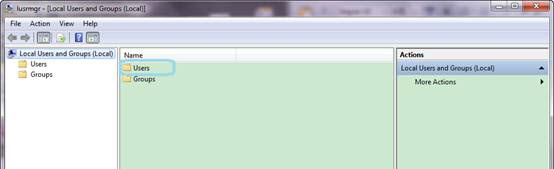
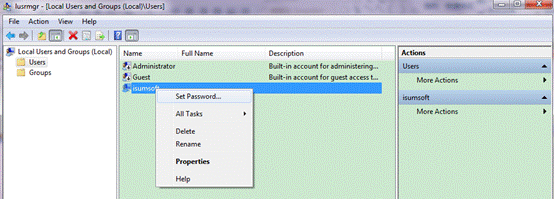
Note:Since you have forgotten the password and have no password reset disk, it’s proper to go ahead regardless of the warning.
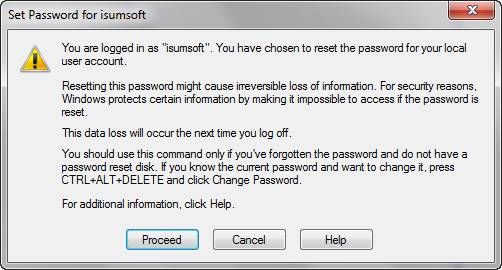
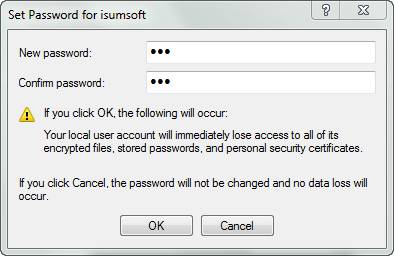
Note: The password in the picture above is just for example. You are recommended to make it longer than 8 chars, which contain three ones of the following four items: special symbols, numbers, uppercase letters and lowercase letters.
Congratulations! The Windows password has been reset.
Have no idea of how strong is your password? Please go see: 2 Tools to Test Your Password Security
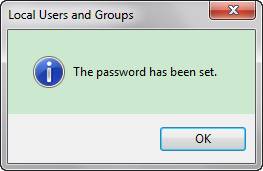
Now you can log back on to your Windows with the reset password.
Want a step-by-step tutorial specific to the Windows version you are using? Please go see:
With This - No More Searching for How to Reset a Forgotten Windows XP Logon Password
Best Ways for Windows 7 Password Recovery on Both Laptop and Desktop Computer
Daossoft Software