 Professional Password Recovery/Rescuer Software, Data Recovery/Rescuer Software
Professional Password Recovery/Rescuer Software, Data Recovery/Rescuer Software
Professional Password Recovery/Rescuer Software, Data Recovery/Rescuer SoftwareThis tutorial shows you how to use Windows Password Rescuer Personal to recover or remove your lost windows 10/8/7/Vista/XP/2000 user password.
Daossoft Windows Password Rescuer Personal is a popular Windows password tool that can help recover your forgotten/lost Windows 10, 8, 7, Vista, XP, 2000 administrator and common user password with CD/DVD or USB Drive.
Just need four steps to reset the user password:
Requires:
Step 1: Download and install Windows Password Rescuer Personal on an available computer and run it.
You can download Windows Password Rescuer Personal and then install it on any available computer (Windows 10, 8, 7, Vista, XP, 2016, 2012, 2011, 2008, 2003, 2000).

Note: If you want to install Windows Password Rescuer Personal in Vista, Windows 7, Windows 8, or Windows Server 2008, 2011, 2012, you'd better run installation program as administrator (Right-click the installation program and select run as administrator).
Step 2: Run Windows Password Rescuer Personal to create a password recovery disk.
Create a password recovery disk with CD/DVD or USB Flash Drive.


1. Select CD/DVD or USB Device option.
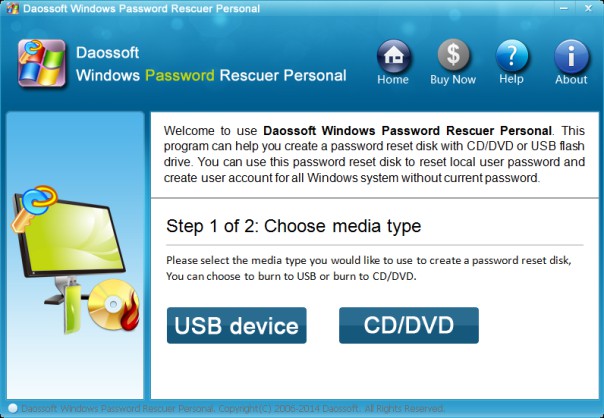
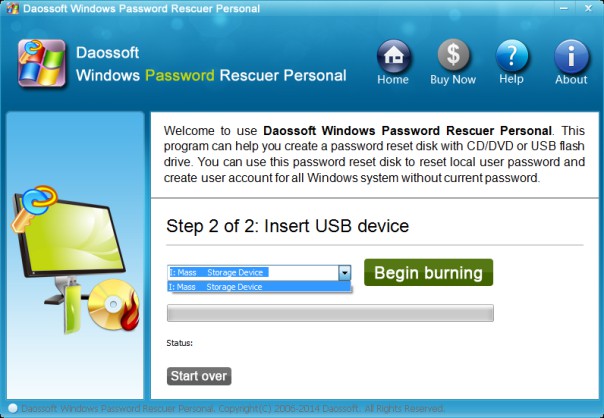
2. Insert a writable CD/DVD or USB. Select burn drive which you inserted and then click Begin Burning.
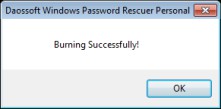
3. Burning successfully completed, click OK and take out your CD/DVD or USB.
Step 3: Insert the password disk to your locked computer, boot the computer from CD/DVD or USB Drive.
To set your computer to boot from CD/DVD, refer to How to Set Your Computer BIOS to Boot from CD/DVD-ROM.
To set your computer to boot from USB flash drive, refer to How to Set Your Computer BIOS to Boot from USB Flash Drive.
Step 4: Reset the password by a few cliks.
1. After booting from CD/DVD or USB flash drive, Windows Password Rescuer Personal will start up and display a friendly window automatically.
2. Select a Windows system you want to recover its users' password if there are several Windows system installed in your computer. All Windows system will be shown in the combo box.
3. Select target user which you want to reset its password from the user list.

4. Now you click "Reset Password" to reset the user password.
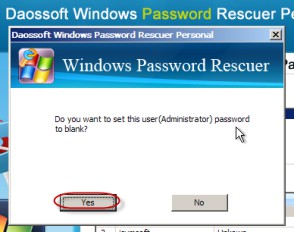
5. After resetting password successfully, the password will be removed and shown "blank".
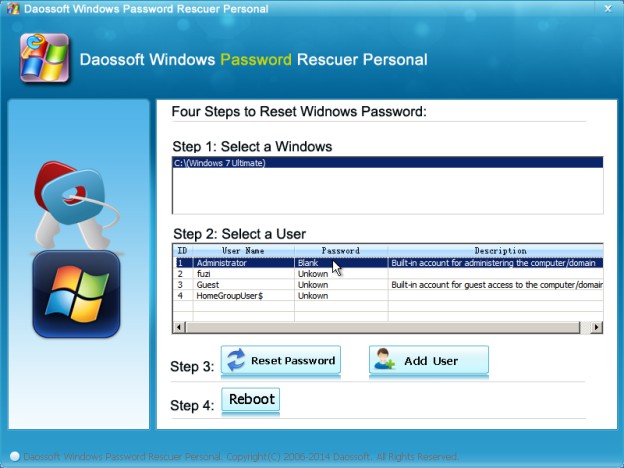
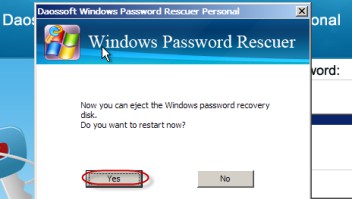
6. Click Reboot. When following dialog pops up, eject password recovery disk, and click Yes to restart your computer then you can feel free to login without password.
Note: If you need new user account or just want to access your locked computer by a new user and don't want to reset other users' passwords, you can click Add User button to add a new Administrator user to your Windows 8, 7, Vista, XP, 2000. This new user is useful when your computer is locked or administrator is disabled. For more: How to Create a New Windows Administrator User for All Windows System.
Get Windows Password Rescuer Personal Now
Video Guide

Quick Links
User Reviews