 Professional Password Recovery/Rescuer Software, Data Recovery/Rescuer Software
Professional Password Recovery/Rescuer Software, Data Recovery/Rescuer Software
Professional Password Recovery/Rescuer Software, Data Recovery/Rescuer SoftwareThis tutorial describes how to create a new Administrator user account for Windows 8, 7, Vista, XP, 2012, 2011, 2008, 2003, 2000, NT operation system by using Windows Password Rescuer. If you cannot log on your Windows as administrator, and do not have the privilege to create a new user, this tool can help create new user with administrator privilege. Here we take Windows Password Rescuer Advanced to create a new user.
NOTE: Windows Password Rescuer full version supports creating user with Administrator privilege.
NOTE: Windows Password Rescuer trial version only supports creating user with common user privilege. The test user will expire immediately after being created.
Step 1. Download and install Windows Password Rescuer on an available computer and run it.
Step 2. Use Windows Password Rescuer to create a password recovery disk with CD/DVD or USB drive.
Step 3. Insert the newly password recovery disk to your locked computer, boot the computer from CD/DVD-ROM or USB drive.
Step 4. Create a new Windows Administrator user.
Step 1. Install Windows Password Rescuer on an available computer and run it.
After purchasing the software, you can download the full version of Windows Password Rescuer by a link from your email box, and then install it in any available computer. So you need another computer you have access to and a blank CD/DVD or USB Flash Drive.
Step 2. Use Windows Password Rescuer to create a password recovery disk with CD/DVD or USB drive.
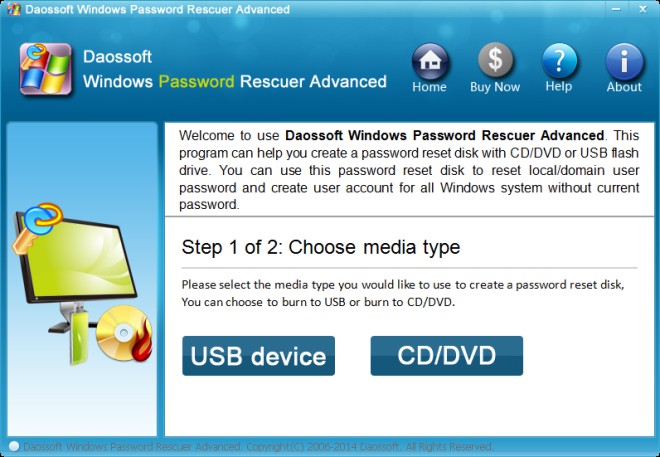
To create a CD/DVD password recovery disk:
1. Choose CD/DVD option. Insert a writable CD/DVD disc.
2. Select the CD/DVD burn drive which you insert CD/DVD disc to.
3. Click Begin Burning button to start burning.
If you want to change media type to burn to USB flash drive, click Start Over button to return and choose USB Device.
To create a USB password recovery disk:
1. Choose USB Device option. Plug in a writable USB drive.
2. Select the USB drive which you plug in USB drive to.
3. Click Begin Burning button to start burning.
If you want to change media type to burn to CD/DVD, click Start Over button to return and choose CD/DVD.
For more details about creating password recovery disk, please refer to How to Create a Windows Password Reset Boot Disk.
Step 3. Insert the newly password recovery disk to your locked computer, boot the computer from CD/DVD-ROM or USB drive.
How to Set Your Computer BIOS to Boot from CD/DVD-ROM.
How to Set Your Computer BIOS to Boot from USB Flash Drive.
Step 4: Create a new Windows Administrator user.
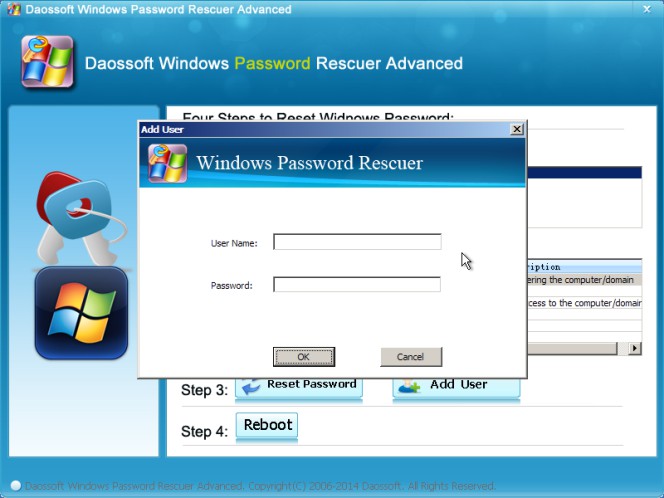
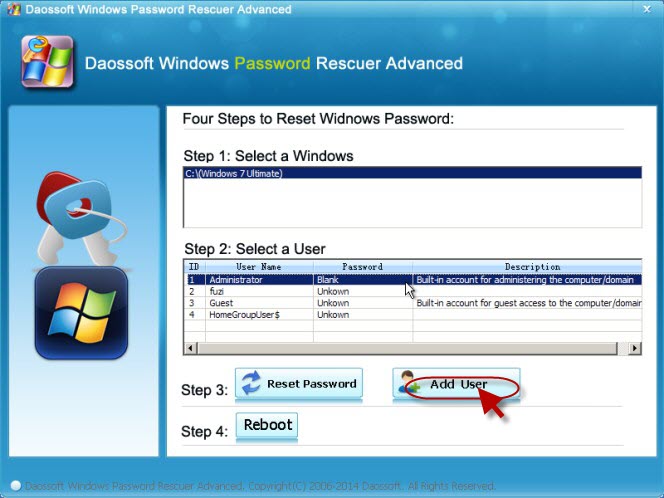
1. When Windows Password Rescuer startup and ready, you will see the friendly window as below. Click Add User button. Then a dialog pop up, input user name and password, and click OK.
Note:
If your Windows is 2000/XP/Vista/Windows 7/Windows 8, you can leave password to blank or set one for it.
If your Windows is Server 2000/2003/2008/2011/2012, Windows Password Rescuer will set the password to Hello@2011 by default. Please remember it.
2. New user Merry has been created and shown in the list.
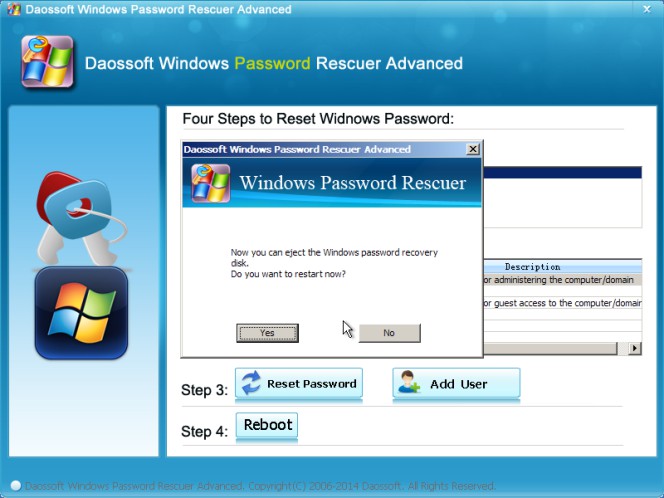
3. Now click Reboot button to restart your computer. When following dialog pop up, eject the disk, and click Yes to restart your computer.
After rebooting, you can log on your windows with new user.